
If you’ve been using ClassIT+® for a while, you probably know the basics: classifying freight, managing users, keeping your subscription current. But tucked inside Company Settings are a handful of features most Company Admins never turn on, and they’re some of the easiest ways to get your whole team working smarter together.
It’s an easy page to overlook. Company Settings is where the day-to-day account housekeeping happens, so it’s natural to visit it once during setup and never come back. But a few of the options on that page aren’t housekeeping at all; they’re collaboration tools that sit dormant until your Company Admin or Account Manager switches them on.
Here’s a look at the features that are worth a few minutes of setup time to enhance your team’s collaboration and productivity.
Step 1: Turn On Company Common to Unlock Team Collaboration
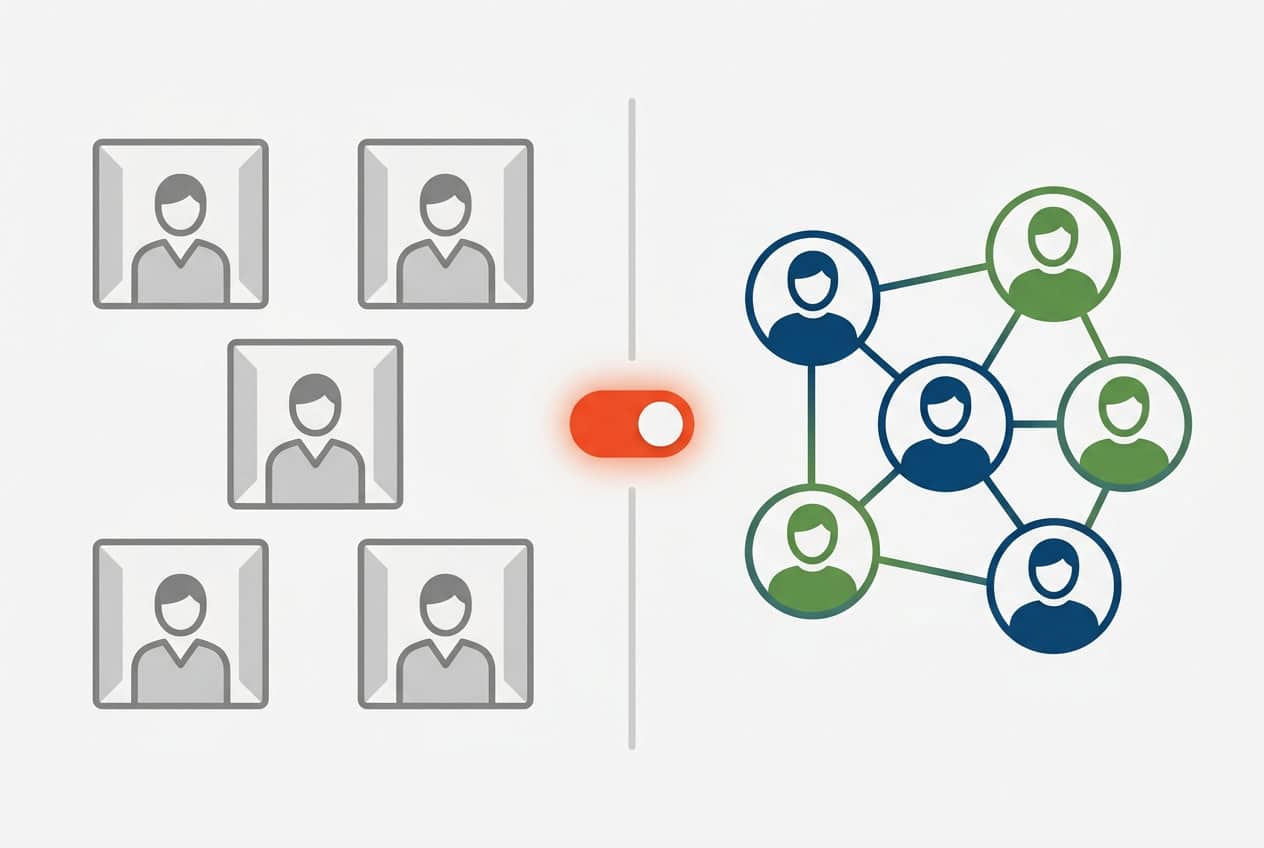
The Company Common is the switch that unlocks everything else on this list. Once your Company Admin or Account Manager flips it on from Company Settings, your team gains access to shared resources instead of everyone working in their own silo, including a team view and the ability to share favorites, synonyms, and comments.
It’s a single toggle, but it’s the foundation for a more connected team. Once the Company Common is enabled, Team View is accessible, and sharing favorites, synonyms, or comments are simple. This is your first step to cohesive collaboration.
To learn more, visit Exploring the ClassIT+ Company Common on our Help Center.
Step 2: Organize Your Team with Team View
Once Company Common is enabled, Team View lets you group your users into teams that share a collaborative space. Rather than every user working independently, an admin can open the Manage Company Teams dialog and:
- Create a new team.
- Add users to their applicable team.
- Manage teams and their members as they evolve.
Easy as 1, 2, 3. Team View is designed to be managed in a couple of clicks, so reorganizing a team when someone changes roles or a new-hire joins takes minutes, not a support ticket.
For companies with multiple departments or classification specialists working on different accounts, Team View means the right people are grouped together, and can see and build on each other’s shared work, instead of duplicating effort across the company. If your classification team has grown organically and everyone’s still working as one big undifferentiated group, this is the feature that finally lets you organize by function, account, or region without losing the collaborative benefits of the Company Common.
To learn more, visit Viewing the ClassIT+ Company Common by Team for more information.
Step 3: Work Smarter by Sharing Favorites
The Favorites feature is the biggest benefit of team collaboration that will have you seeing stars. Not only is it simple and easy to use, but you don’t have to enable or configure it because the feature is baked into the ClassIT+ experience. Everywhere you see the star icon is an opportunity to save an item you come back to the most from a frequently used commodity code to a saved search. All of your favorites are pulled together on one page, sorted into Most Visited and Recently Visited, with filtering by type and sorting by numerical order, so a growing list of favorites never turns into clutter.
You can even share your favorites with your team. The moment Company Common is enabled, your team’s most useful, most-referenced items are already positioned to become common knowledge instead of something only one person knows how to find. That’s a real time-saver for teams where a handful of people tend to know all the shortcuts. Instead of a single person hunting for the item a colleague has already bookmarked; it’s sitting right there, shared and ready to use.
To learn more, visit Exploring ClassIT+ My Favorites for more information.
Step 4: Let Your Team Build a Shared Language with Synonyms
Freight classification runs on precise terminology, but not everyone describes a product the same way, one person’s “pallet wrap” is another’s “stretch film.” Synonyms let your users create alternate terms for items they classify regularly, so searches return the right results no matter how someone phrases them.
By default, every user can already create their own synonyms, and that feature can be toggled on or off company wide. The real efficiency gain, though, comes from sharing them. Once the Company Common is enabled and the Enable Share Synonyms option is turned on, one person’s synonym becomes the whole team’s shortcut. Nobody has to reinvent a synonym a colleague already solved months ago, and new team members inherit a growing shared vocabulary instead of starting from zero.
To learn more, visit Exploring the ClassIT+ My Synonyms for more information.
Step 5: Capture Institutional Knowledge with Comments
Comments let users attach notes directly to items in ClassIT+, the kind of context that normally lives in someone’s head, an email thread, or a side spreadsheet nobody else knows exists. Like synonyms, comments are enabled by default and can be toggled off, if you’d rather, they do not appear at all.
Sharing comments makes that institutional knowledge quickly visible to the whole team, not just the person who wrote it. That’s especially valuable when onboarding a new team member who needs the “why” behind past classification decisions and when covering for a colleague who’s out of office when a question comes up about something they classified. Instead of tracking that person down, the reasoning is already sitting on the record.
To learn more, visit Managing Your ClassIT+ Company Settings Resources for more information.
Bonus: Fine-Tune Access at the Individual Level
One more detail worth knowing is that you don’t have to manage synonyms and comments as an all-or-nothing, company-wide setting. Once you’ve enabled them at the company level, you can also control them per user from the Company Users page. Simply open a user’s record, click Manage Resources, and toggle their individual access on or off.
That flexibility matters for teams with a mix of roles. Maybe your senior classifiers should be able to share synonyms freely, while newer team members review shared content without contributing their own until they’re trained up. Individual-level control lets you set that up without changing anything for the rest of the team.
To learn more, visit Managing Your ClassIT+ Users for more information.
Stop the Silos and Start Building Efficient Teams Now
None of these features require a new subscription or a call to support. Simply go to your Company Setting and flip a few toggles to get started. If your team has been classifying in isolation, turn on the Company Common now and start seeing those silos turn to a cohesive whole that drives operational efficiencies.
To learn more, visit Exploring the ClassIT+ Company Common for more information.